
Translate any text on your screen
Offline, on-device translation for macOS

Select any region of your screen containing text. Screen Translate recognizes the language, translates it into your chosen target language, and shows the result side by side - all on device, all offline, built on Apple's Vision and Translation frameworks.
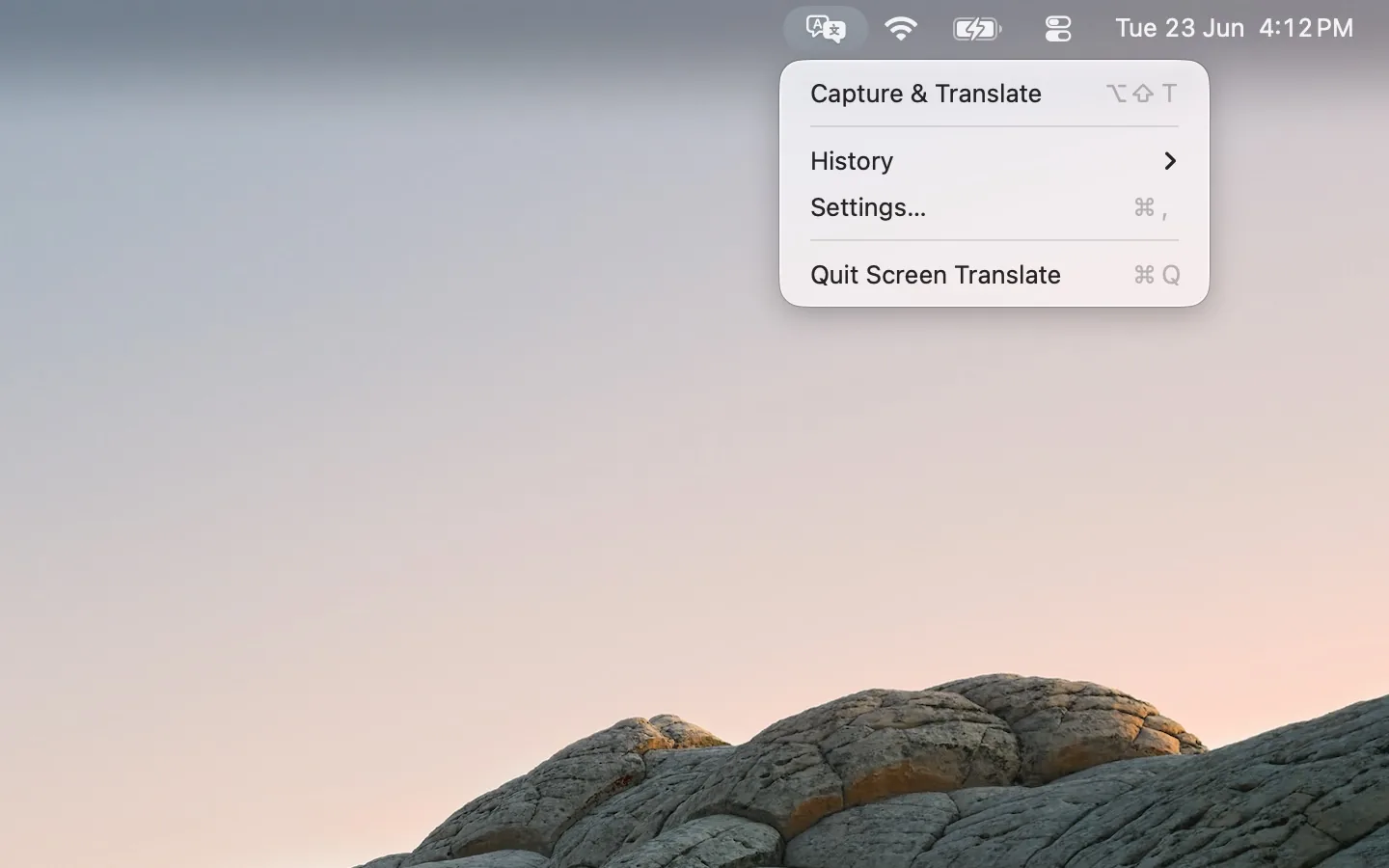
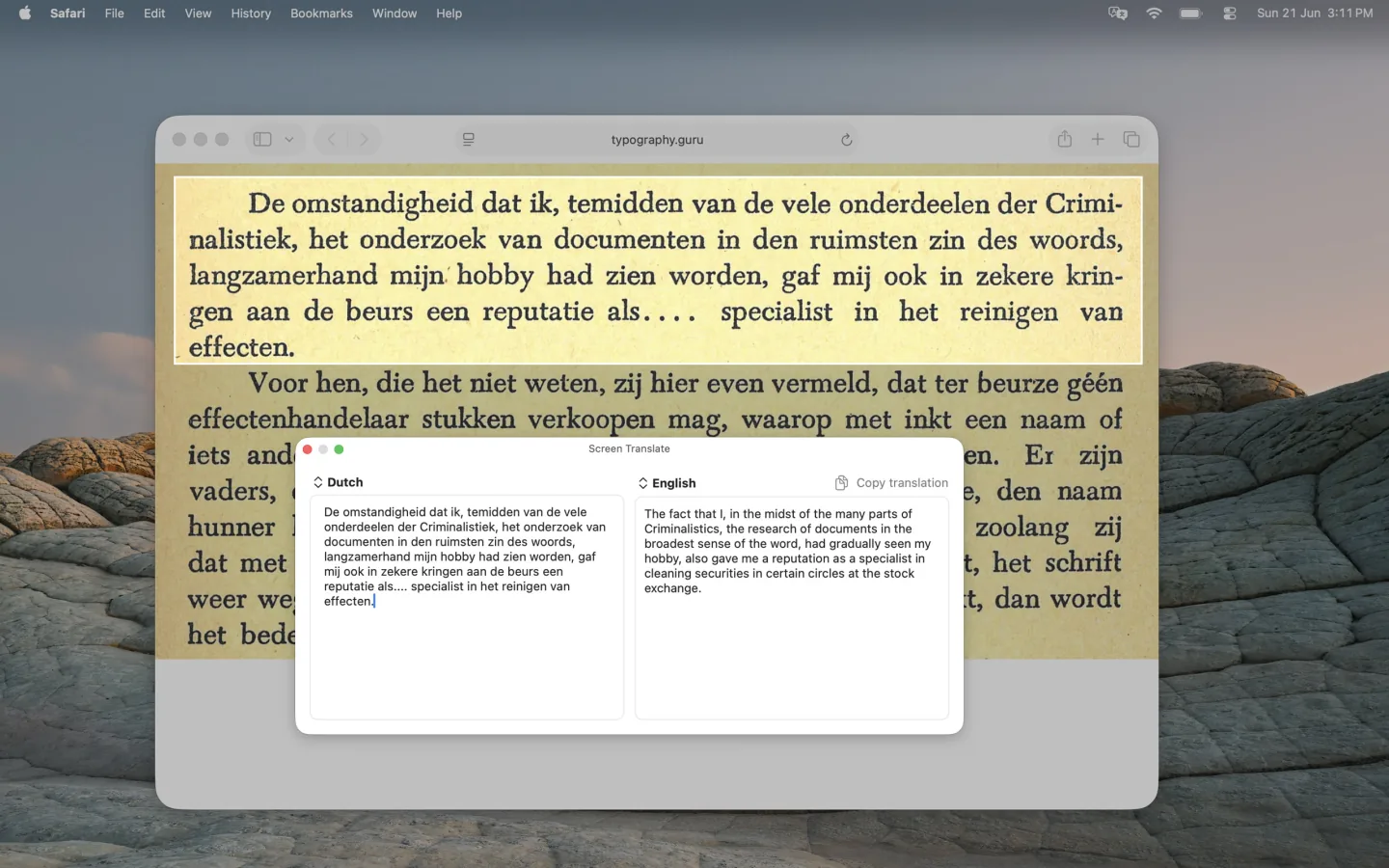
Use menu item in the menu bar or a keyboard shortcut to capture the text
How it works
Trigger Capture & Translate
The hotkey (default: Option-Shift-T) or the menu bar icon.
Drag to select the region
The screen dims; select the area you want to translate. Esc cancels.
Read it side by side
The recognized text next to its translation. Edit and re-translate without leaving the window.
Features
- Drag-to-select any screen region for translation
- Automatic source language detection
- Translate to 20+ supported languages
- Fully offline - no internet connection required
- Side-by-side view with editable captured text
- Translation history - up to 20 recent translations
- Auto-copy results to clipboard (optional)
- Configurable global hotkey, with an off switch
Permissions
Screen Translate uses screen recording access only to read pixels from the region you choose to translate. Screen Translate does not record your screen continuously, monitor other apps, or send captured content anywhere.
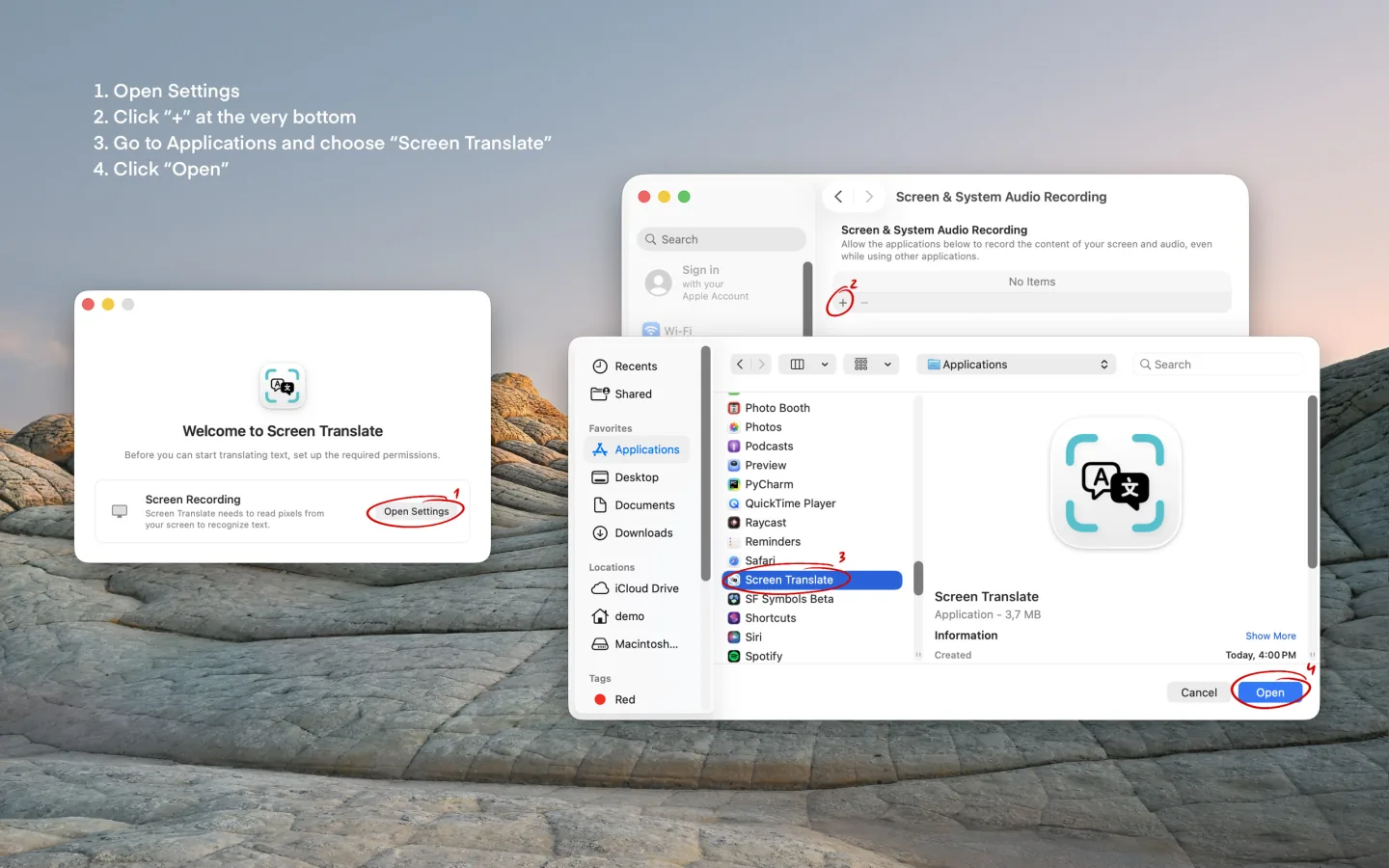
How to add the app manually
If Screen Translate is missing from the list, follow the steps above to add it.
Supported languages
Arabic, Chinese, Danish, Dutch, English, French, German, Hindi, Indonesian, Italian, Japanese, Korean, Norwegian Bokmål, Polish, Portuguese, Russian, Spanish, Swedish, Thai, Turkish, Ukrainian, and Vietnamese. Availability is provided by the macOS Translation framework and may vary by OS version.
Hotkeys
- ⌥⇧Tto capture and translate text from the screen
FAQ
How do I translate text on my screen?
Once you trigger Capture & Translate using the hotkey (default: Option+Shift+T) or the menu bar icon, the screen dims - drag to select the area you want to translate. Press Esc at any time to cancel.
Does Screen Translate record my screen all the time?
No. Screen reading only happens when you trigger a translation with the hotkey or menu bar icon - it reads the selected area once, translates the text, and immediately discards the pixels. Nothing is recorded, or sent anywhere.
Why does Screen Translate use Screen Recording access?
Screen Recording access lets Screen Translate read the selected region when you start a translation. Screen Translate only uses Screen Recording access for selected regions. The Permissions section above includes the manual setup steps.
Can I turn off the keyboard shortcut?
Yes. In Settings, you can disable the Capture & Translate hotkey. The menu action remains available.
Screen Translate is missing from the permission list. How do I add it?
Open System Settings, go to Privacy & Security, choose Screen Recording, click the "+" button at the bottom of the list, go to Applications, select Screen Translate, and click Open. Then enable Screen Translate in the list.
Why does Screen Translate need to download a language pack?
Screen Translate uses Apple's on-device Translation framework, which requires an official language pack for each language pair. The first time you translate into a new language, macOS will prompt you to download the needed pack. You can manage installed languages anytime in System Settings > General > Language & Region > Translation Languages - add or remove them as needed.
Can I access my previous captures?
Yes, Screen Translate stores up to 20 of your most recent captures. You can browse them from the menu bar or the app window. If you have captured sensitive information, you can clear the history at any time.
Can I edit the captured text before translating it?
Yes. You can edit the captured text directly. When you make changes, a translate button appears so you can translate the edited text - all without leaving the window.
Guides
- Translate any text on your screenCopy and paste covers selectable text. This is for the scans, subtitles and interfaces that aren't.
- Translate on a Mac without internetApple's on-device translation, the language packs it runs on, and how to point it at the screen.
Get Screen Translate
Free, and fully offline.
No data or personal information is collected by this app · Contact support