If you can select the text, translation is a solved problem: copy it into the Translate app, or right-click and translate in Safari, and for a whole webpage Safari's built-in page translation does it in place. Start there.
The text you can't select
The gap is everything else: a scanned PDF, an error message in a screenshot someone sent, a video with burned-in subtitles, a game, an app whose interface is in a language you don't read. None of it is selectable, so none of it can be copied into a translator - and retyping text in an alphabet you may not know is nobody's plan.
Select the region, not the text
Screen Translate works on the screen itself: press the hotkey (Option-Shift-T by default), drag over the region, and it recognizes the text, detects the language, and shows the translation side by side with what it read. If the OCR grabbed a word wrong, edit the captured text right there and translate again - without leaving the window.
It runs entirely on your Mac, using Apple's Vision framework for recognition and the Translation framework for translation - no internet connection required, which also means it works on a plane, and nothing you translate goes anywhere. Twenty-plus languages, from Arabic to Vietnamese.
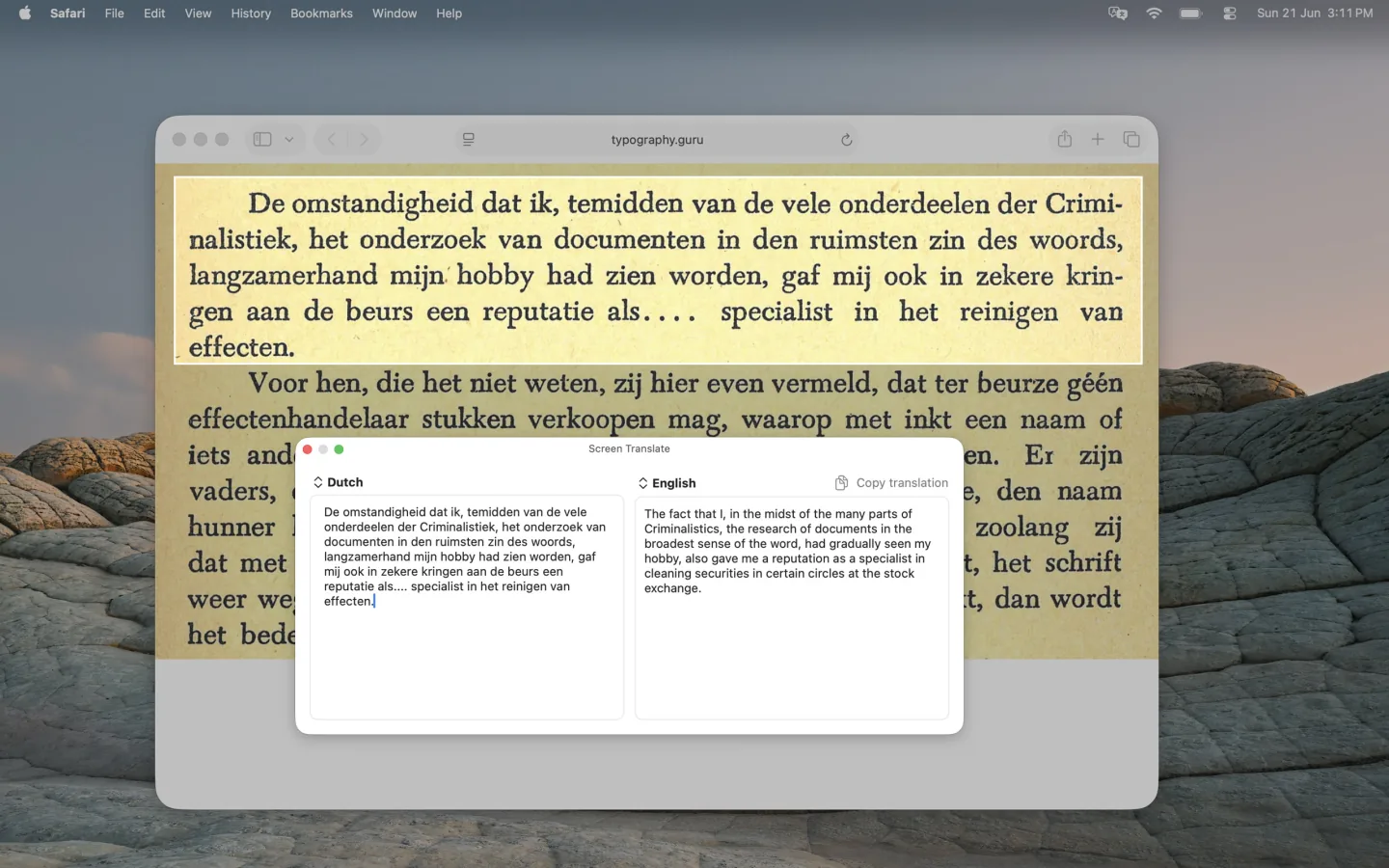
Free on the Mac App Store.
FAQ
How do I translate text in an image or PDF on a Mac?
If Live Text can select it, copy it into the Translate app. If it can't - scans, videos, app interfaces - a screen translator OCRs the region you select and translates it in one step.
Does it need an internet connection?
No. Recognition and translation both run on-device. The first time you use a new language pair, macOS downloads a language pack; after that it's fully offline.
What languages are supported?
The languages of the macOS Translation framework - currently 22, including Chinese, Japanese, Korean, Arabic, Ukrainian, and the major European languages. Availability can vary by macOS version.