
Your barcodes, on your wrist
Loyalty cards, tickets, and QR codes on Apple Watch
Wrist Codes keeps your important barcodes on Apple Watch - as widgets and watch face complications - and on iPhone as Home Screen widgets. Add a code once, and it is one tap away whenever a pass, membership card, or loyalty card needs scanning.
How it works
- 01
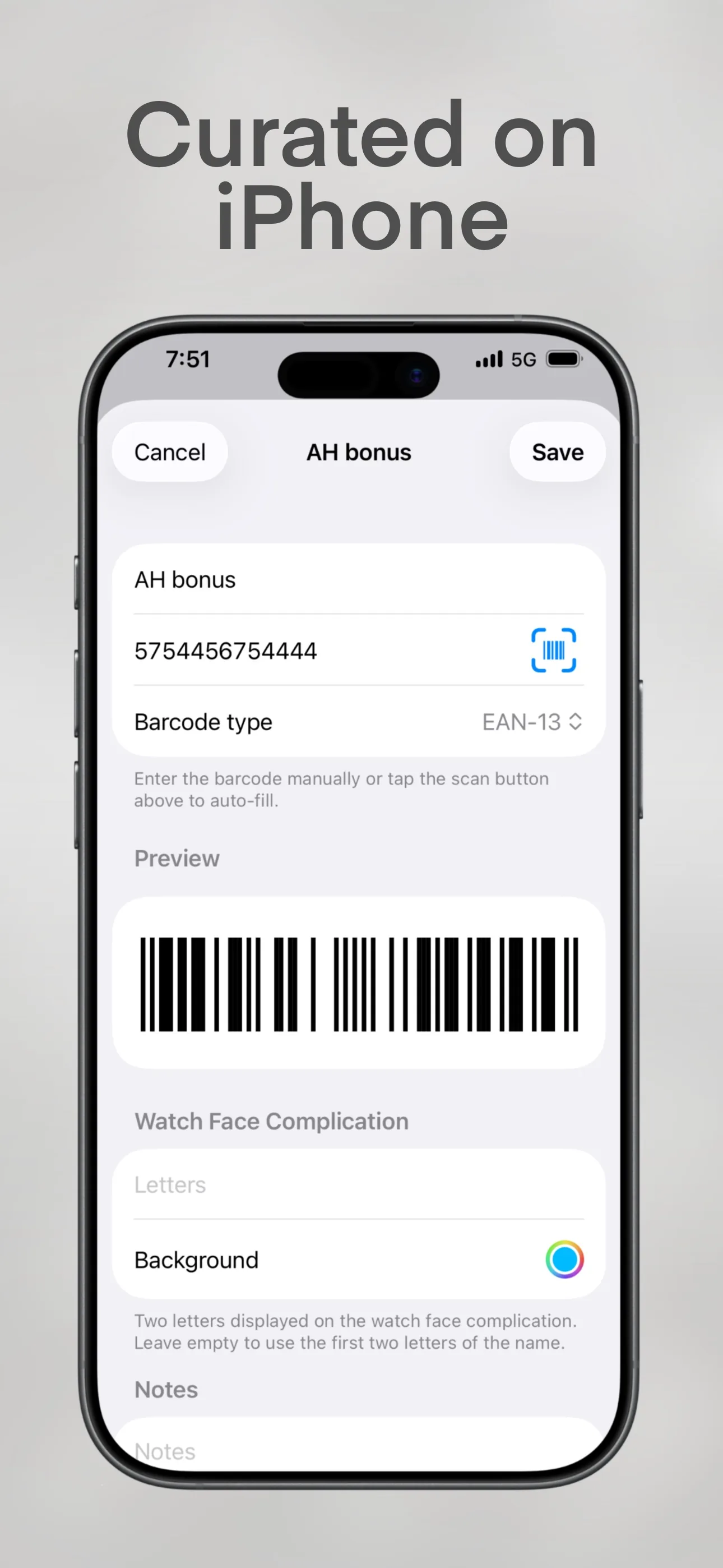
Add the card on iPhone
Add the codes you use often - passes, membership cards, loyalty cards.
- 02
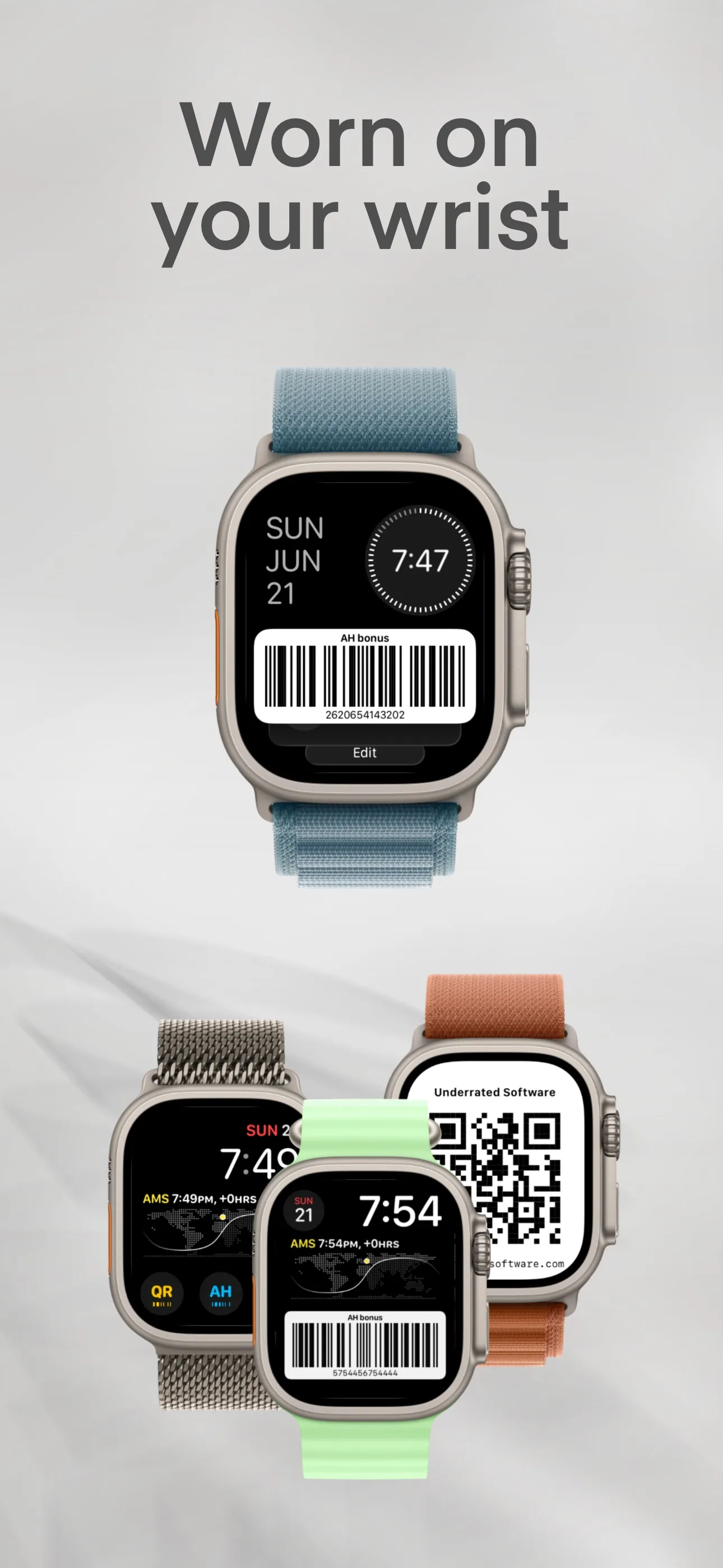
Put it on your wrist
A complication on the watch face, a Smart Stack widget, or both - they are not exclusive.
- 03
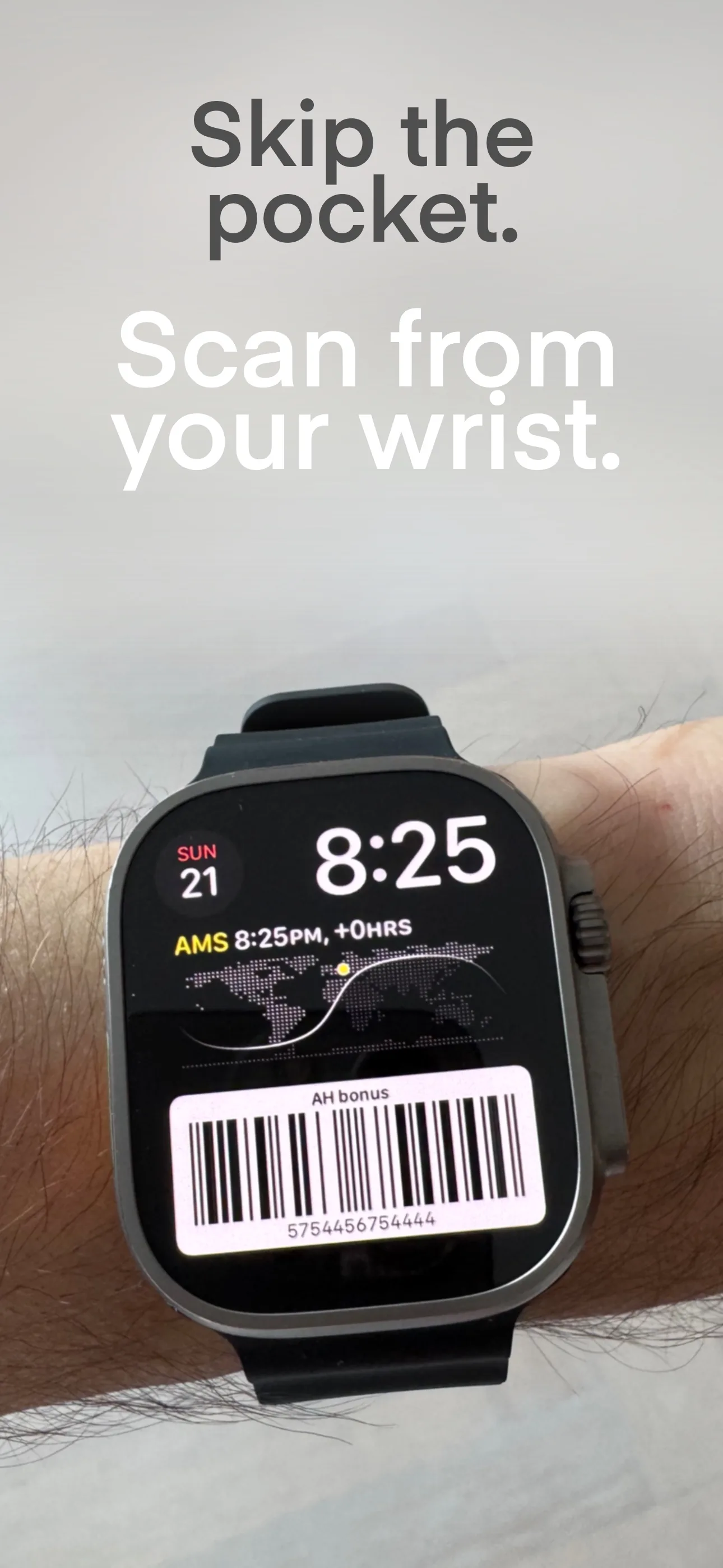
Turn your wrist to scan
The large complication shows the barcode already rendered on the face. Tapping any of them opens it up to date.
Features
- Add a code once on iPhone; it syncs to the watch
- Watch face complications and Smart Stack widgets open it in one tap
- iPhone Home Screen widgets for the same codes
- Tapping always shows the code up to date, even when the snapshot lags
- Built for passes, membership cards, loyalty cards, and everyday scan codes
FAQ
What is Wrist Codes for?
Keeping your important barcodes one tap away - on Apple Watch through widgets and watch face complications, and on iPhone through Home Screen widgets. Ideal for the loyalty cards, membership cards, and passes you scan often.
How do I access a barcode from Apple Watch?
Add Wrist Codes to the Apple Watch widget system or add a Wrist Codes complication to a compatible watch face. When you tap the widget or complication, Wrist Codes opens and shows the current barcode data.
Why does a complication or widget show old data?
Complications and widgets are snapshots refreshed on a schedule the system controls, so they can lag after you edit a code. Tapping one opens Wrist Codes and always shows the current version. To nudge a stale complication, make sure the data has synced to the watch, then switch to another watch face and back; a widget can be removed and re-added.
How do I add an iPhone widget?
Touch and hold an empty area on your iPhone Home Screen until the apps jiggle, then tap the Add button (+) at the top. Search for Wrist Codes and choose the widget size you prefer.
Guides
- Put a loyalty card on your Apple WatchUse an Apple Wallet pass when the store provides one, or display the barcode with a watch app, complication or Smart Stack widget.
- Show a QR code on your Apple WatchThree routes, depending on the code: a Wallet pass for tickets, a synced photo for any QR code, or a code app for short codes you show every day.
- Dutch grocery shopping with only an Apple WatchA Dutch supermarket trip takes two scans: loyalty card and payment. What each big chain - Albert Heijn, Jumbo, Lidl, Plus, Aldi and Dirk - lets you do from an Apple Watch, and where the phone comes back out.
Get Wrist Codes
Free, on your wrist.
 (opens in a new tab)
No data or personal information is collected by this app · Contact support
Support small, independent apps
If Wrist Codes has been useful to you, you can support more small apps like it.
 Buy me a coffee