
Know it copied, every time
Fun confirmation for chronic double-copiers
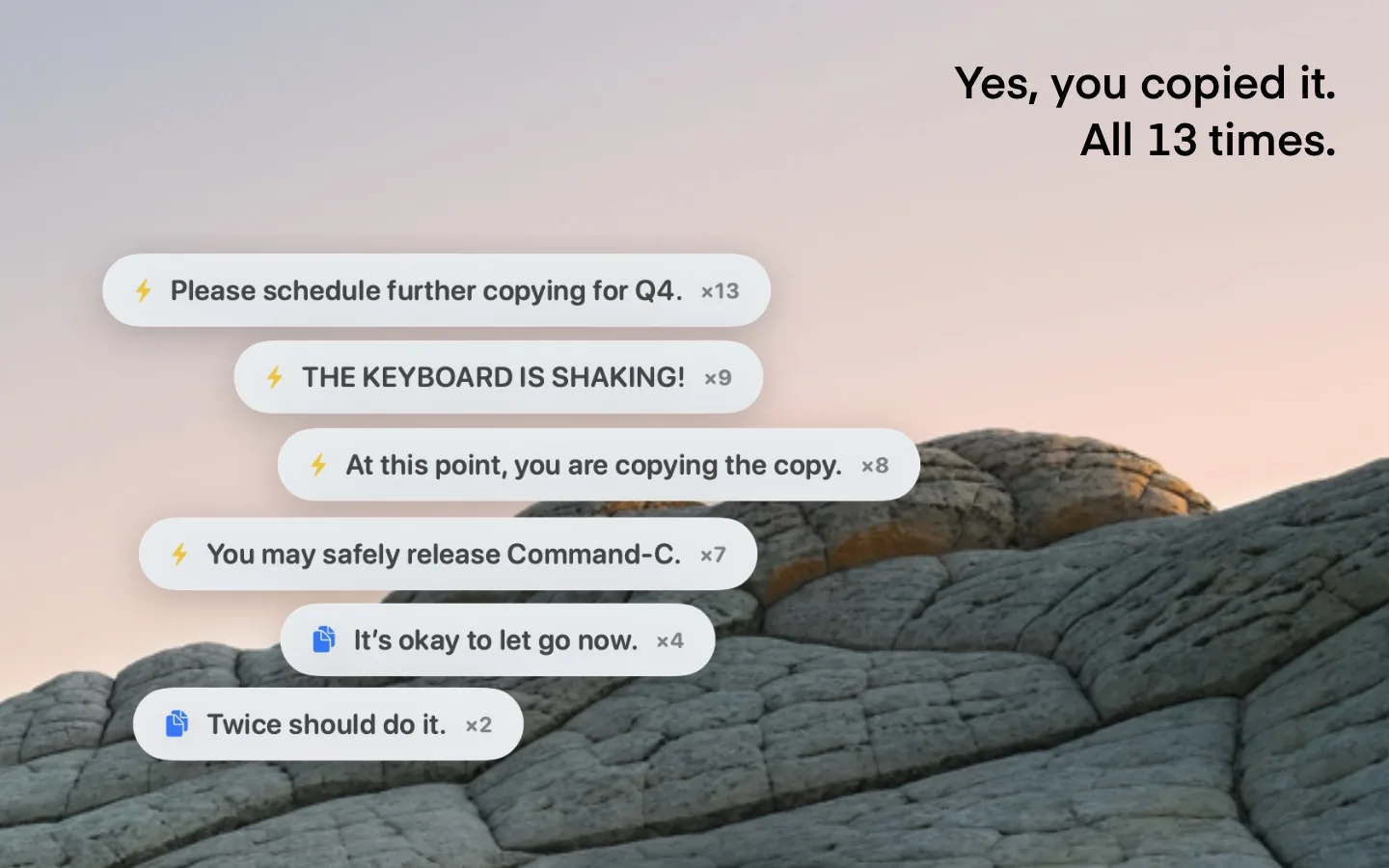
Did I Copy It? turns the familiar habit of pressing Command-C more than once into a small moment of fun. Your first copy stays completely quiet. Copy again within the selected time window and the app responds with a randomly chosen message that becomes more energetic as the streak grows.
Use the left and right arrow keys to change screenshot.
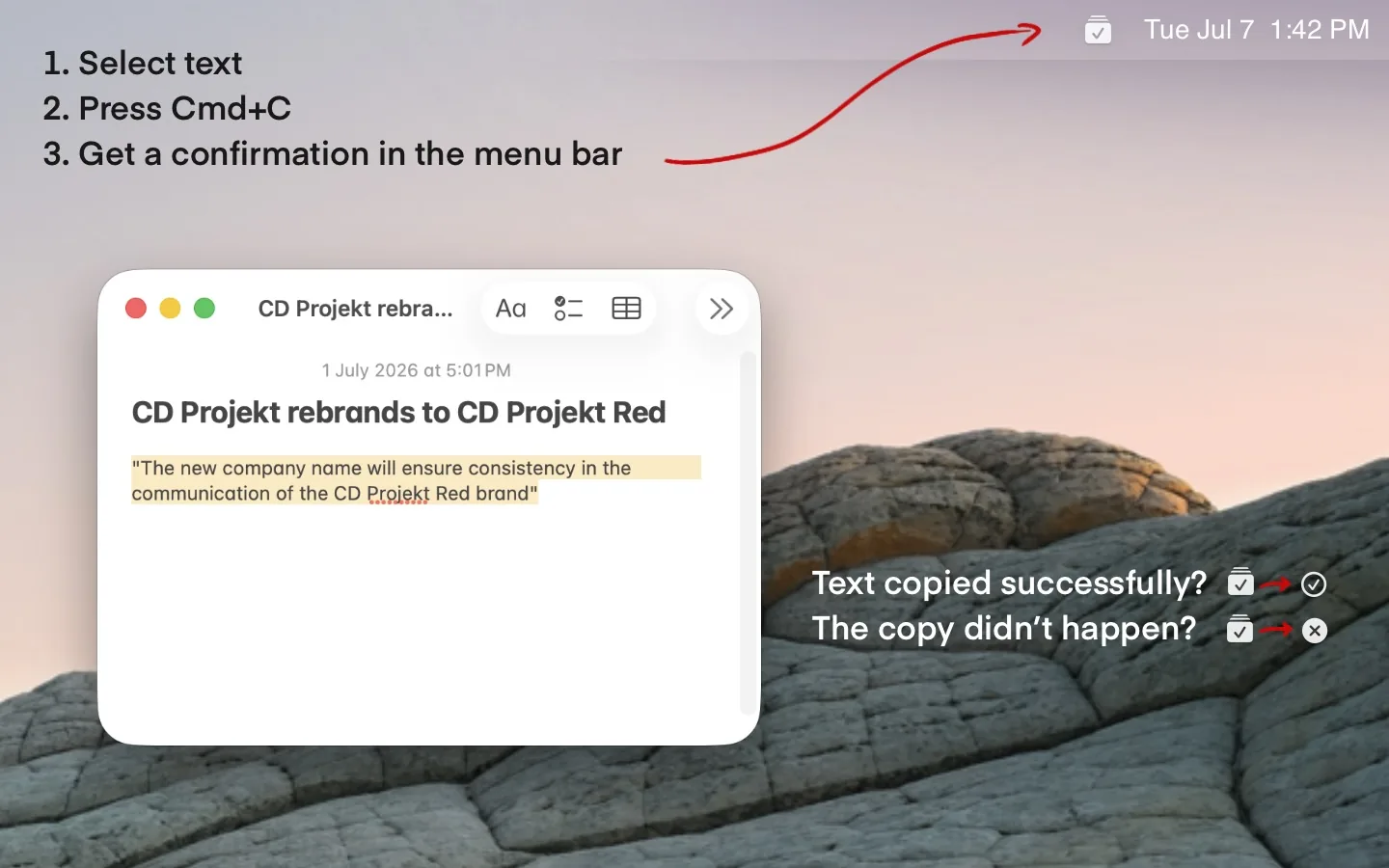
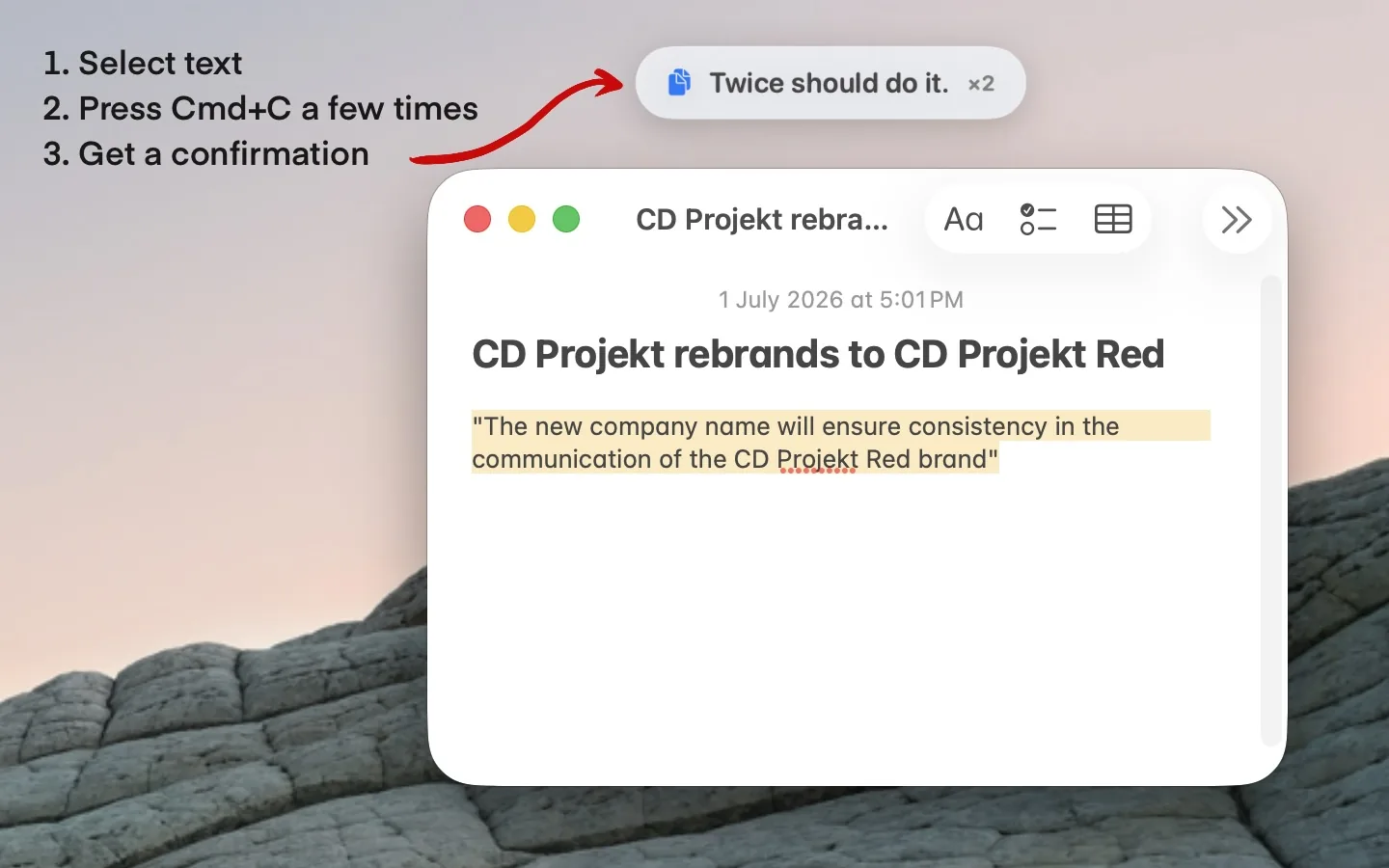
Screenshot 1 of 3: Menu-bar status confirms copy success or no-copy results
How it works
The menu-bar icon briefly confirms every successful copy - no permission needed. Copy again within your streak window and a short fun notification appears; keep going and the messages escalate, sometimes into something wonderfully unnecessary.
Prefer it quiet? Turn off Fun copy notifications and keep just the icon. The optional Detect unsuccessful copy attempts setting uses Input Monitoring to say when Command-C did not actually copy.
Features
- Silent on the first copy; the menu-bar icon confirms it, no permission needed
- Fun notifications from the second copy, escalating with the streak
- Seven personalities - Neutral, Champ, Hype, Sarcastic, Calm, Corporate, Goblin - mixable freely
- Import and export custom JSON message packs
- Rare easter-egg messages for unusually long streaks
- Mute selected applications; pick a macOS sound or none
- Adjustable streak window, text size, animation, and overlay position
- Optionally detect unsuccessful copy attempts via Input Monitoring
Permissions
Did I Copy It? detects successful clipboard changes without any macOS permission. Input Monitoring is only used by the optional Detect unsuccessful copy attempts setting so the app can report when Command-C did not change the clipboard.
How to add the app manually
You can leave this permission off and still see successful-copy confirmation. Grant it only if you enable Detect unsuccessful copy attempts.
FAQ
Will I see a message every time I copy?
No. Fun copy notifications begin only when another successful copy happens within your configured streak window. The menu-bar icon separately confirms every successful copy, including the first.
Does it read what I copy?
No. Did I Copy It? never reads or stores your clipboard contents.
Does it need Accessibility or Input Monitoring permission?
No. Fun notifications and successful-copy confirmation work without either permission. Input Monitoring is only needed if you enable Detect unsuccessful copy attempts.
Can it tell me when copying failed?
Yes. Enable Detect unsuccessful copy attempts and grant Input Monitoring. The app uses that permission only to detect Command-C, then checks whether the pasteboard change count moved and shows No copy detected when it did not.
Can I disable it in specific apps?
Yes. Mute the current application from the menu bar, then manage muted applications in Settings.
Can I keep it minimal?
Yes. Turn off Fun copy notifications to hide repeated-copy toasts and leave Detect unsuccessful copy attempts off. Successful copies still receive brief menu-bar icon confirmation. You can also choose No Sound and mute selected apps.
Can I add my own messages?
Yes. You can import and export custom JSON message packs, or edit pack files directly in the Custom Message Packs folder.
Get Did I Copy It?
Free, and quiet until the second copy.
 (opens in a new tab)
No data or personal information is collected by this app · Contact support
Support small, independent apps
If Did I Copy It? has been useful to you, you can support more small apps like it.
 Buy me a coffee